Slicer Tool
Contributors

C-Slice — Media Slicer for Immersive Environments
About C-Slice
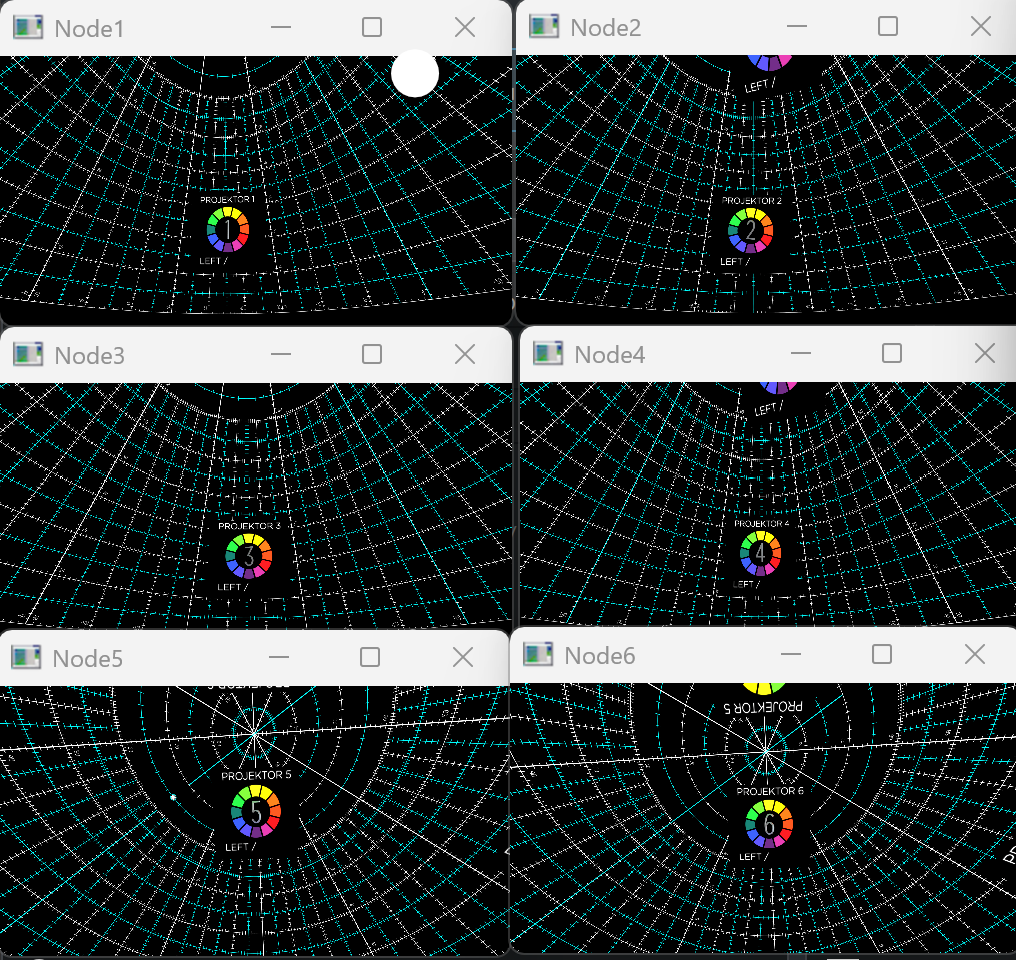
C-Slice is an open-source Qt/Kirigami media encoder for preparing image sequences and video files for immersive playback systems. It renders dome, spherical, fisheye, planar, and SGCT-window based outputs, then encodes each selected output window with FFmpeg.
C-Slice is designed to complement playback tools such as C-Play: C-Play runs media in an immersive environment, while C-Slice prepares per-window video or image outputs that match the SGCT configuration used by that environment.
How C-Slice Works
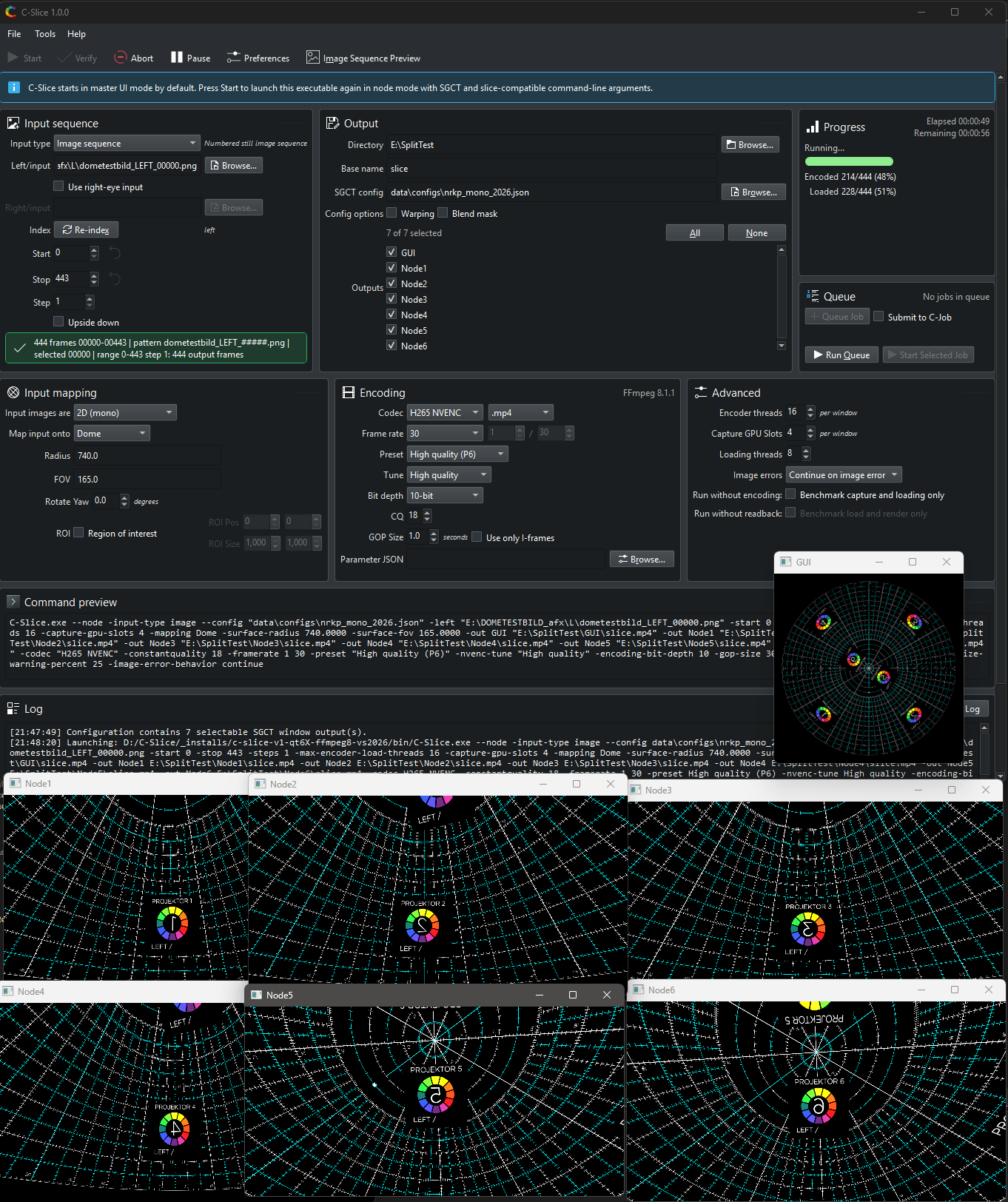
C-Slice starts as a Qt/Kirigami master UI. When you press Start, the UI launches the same executable again in node mode with SGCT and slice-compatible command-line arguments. The node process loads the selected source media (image sequence or video file), maps it onto the chosen surface, renders each selected SGCT window, captures the result, and sends the frames to FFmpeg encoders.
The workflow is intentionally file based:
- Input comes from numbered still image sequences or video files.
- Output targets come from SGCT JSON configuration windows.
- Encoding comes from UI settings and optional FFmpeg parameter JSON files.
- Production defaults are saved in the C-Slice preferences.
Main Features
- Slice mono or stereo image sequences or video files into SGCT window outputs
- Map content onto dome, equirectangular sphere, equiangular cubemap sphere, or plane geometry
- Use SGCT configuration files to select the exact windows to render
- Encode video with FFmpeg using H.264, H.265, NVENC, ProRes, Hap, VP8, VP9, MPEG, or still-image output codecs
- Preview source media and verify image sequences before running a long slice job
- Use benchmark modes for loading, rendering, capture, and encoding performance tests
- Mux mono audio channel files into a multi-channel WAV file
Backend
C-Slice is based on these open source projects:
- SGCT - Simple Graphics Cluster Toolkit, used for window, viewport, projection, and capture setup
- FFmpeg - Used for video and image encoding, and for audio muxing
- Qt and KDE Frameworks - Used for the master UI
- Wuffs - Used for high-performance image loading in current builds
Version
Current project version: 1.0
Download
C-Slice v1.0 (Latest Open-Source Version)
Get the latest release of C-Slice from GitHub:
- Download C-Slice v1.0 — Pre-built Windows installer with all required runtime dependencies
Using C-Slice
Media Structure
A typical production slice from an image sequence starts from a source folder such as:
source/
  show_left_000000.png
  show_left_000001.png
  show_left_000002.png
Stereo work normally uses a matching right-eye sequence:
source/
  show_right_000000.png
  show_right_000001.png
  show_right_000002.png
For video input, a single file (or a left/right pair for stereo) is used instead:
source/
  show_left.mp4
  show_right.mp4
C-Slice writes each enabled SGCT window into its own output folder named after that window. For example:
output/
  DomeMaster/
    show_DomeMaster.mp4
  ProjectorLeft/
    show_ProjectorLeft.mp4
  ProjectorRight/
    show_ProjectorRight.mp4
The exact window names come from the selected SGCT JSON configuration.
Slice Workflow
- Choose input source — Select one image from a numbered sequence or choose a video file after switching Input type to Video
- Select SGCT configuration — Choose the SGCT JSON config that matches your target display system
- Set output directory — Configure an output folder with enough free space for the encoded outputs
- Configure mapping mode — Select Dome, Sphere EQR, Sphere EAC, or Plane geometry for content mapping
- Set encoding options — Choose codec (H.264, H.265, NVENC, ProRes, Hap, etc.), quality settings, and output format
- Verify or Start — Press Verify to validate input files or Start to render and encode
The UI launches C-Slice.exe --node for the actual rendering and encoding operation.
Mapping Modes
C-Slice supports four mapping modes for content surface geometry:
- Dome — Maps content onto a dome surface, ideal for fulldome installations
- Sphere EQR — Equirectangular sphere mapping for 360° spherical output
- Sphere EAC — Equiangular cubemap sphere mapping
- Plane — Flat planar projection for standard displays
Encoding Outputs
Each enabled SGCT window is encoded independently with FFmpeg. Supported codecs include:
- H.264 (AV1) — Widely compatible video encoding
- H.265 (HEVC) — High-efficiency compression
- NVENC — NVIDIA GPU-accelerated encoding
- ProRes — Apple professional codec
- Hap — QDecode high-performance codec
- VP8 / VP9 — WebM codecs
- MPEG — Legacy MPEG formats
- PNG / JPEG / TGA — Still-image sequence output
Settings & Performance
C-Slice has two levels of settings. The main window controls the current slice job, while Tools > Preferences stores startup defaults for future jobs. Preferences are saved in C-Slice/CSLICE.conf.
Key performance settings:
- Thread counts — Controls worker threads for loading, rendering, capture, and encoding
- GPU slot counts — Limits concurrent GPU operations for stability
- Decoding mode — Software, hardware, or hybrid video decoding via MPV
- Benchmark modes — Performance testing without encoding or readback costs
Toolbar Actions
- Start — Launches node mode with the current settings
- Verify — Checks selected image files before rendering (image sequence input only)
- Pause / Resume — Control a running node process
- Abort — Stops the running node process
- Preferences — Opens startup default settings
- Image Sequence Preview — Opens a preview window for the selected input sequence
- Video Preview — Opens a video preview window (shown when Input type is set to Video)
The Command preview panel shows the node-mode command that will be launched, useful for troubleshooting or comparing configurations between machines.
External Resources
For more detailed documentation, visit the official C-Slice documentation:
- Main Documentation — Home page with all guides
- Install Guide — Installation instructions for Windows
- Setup Guide — Configuration and workstation setup
- Media & Data Structure — Image sequences, video input, mapping modes, encoding
- Workflow Guide — Slice workflow and job management
- Settings Reference — All available settings and preferences
- Build from Source — Building C-Slice from source code
- GitHub Repository — Source code and releases