Interface
Contributors

Funding

SimStad Interface
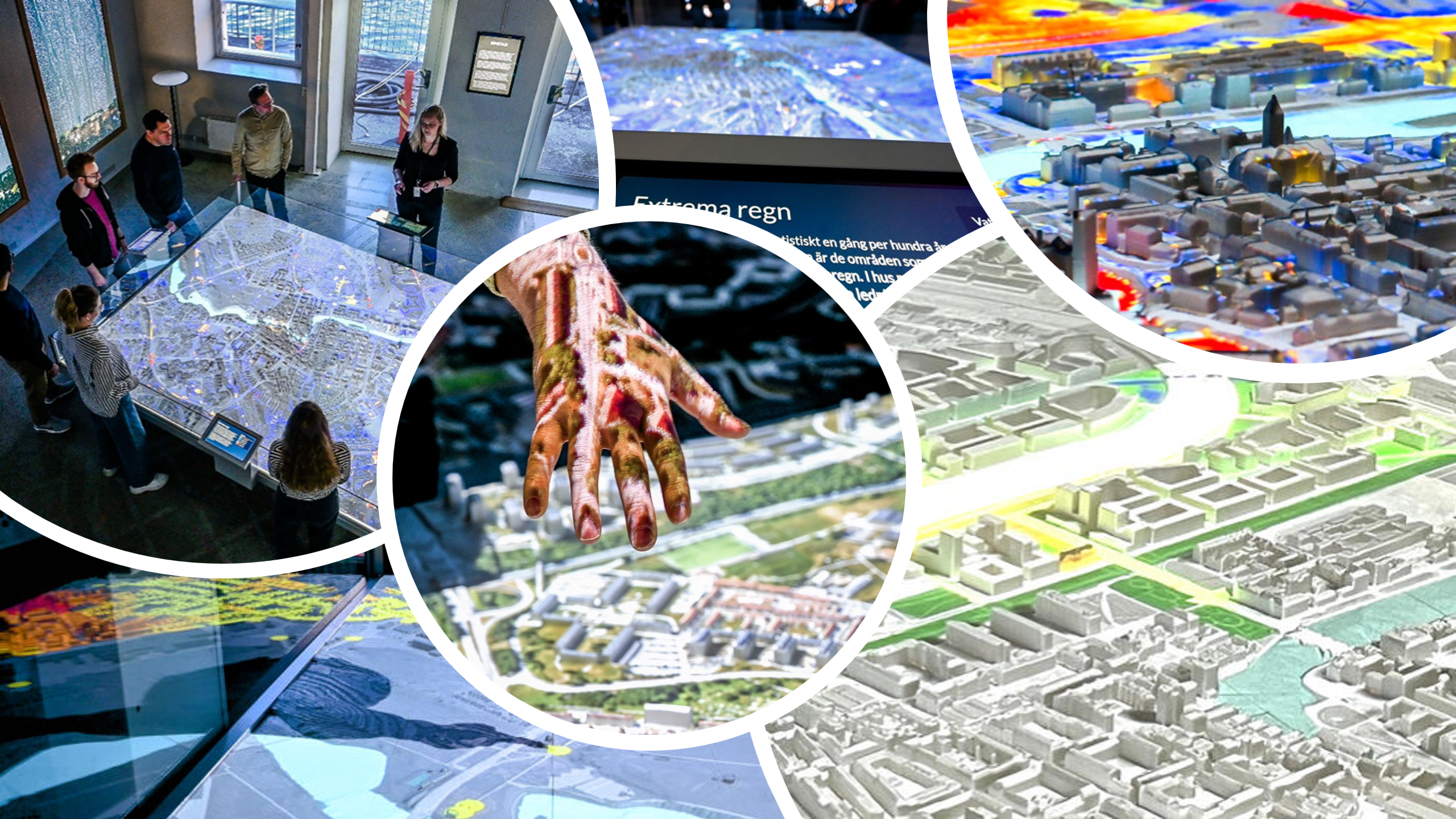
The SimStad Interface is the touchscreen application that visitors use to explore stories, themes, and map data on the physical 3D city model. It retrieves exhibition content from Omni and sends the visitor's choices to Unreal Engine and Blocks.
Communication with Unreal Engine is described in the SimStad WebSocket protocol.
Download and installation
Before setting up the Interface, complete the Omni setup. Create a City Exhibit and add a few Rasters, Scenarios, and Collections so that the Interface has content to display. The Interface also uses localized strings configured in Omni, so add the required translations before testing the complete visitor experience.
Run the Interface locally
- Clone the SimStad Interface repository.
- Synchronize Omni's media folder to the computer running the Interface. When Omni and the Interface run on the same computer, the Interface can use Omni's media folder directly.
- Update
config.jsonin the repository root using the settings described below. - Run
npm run dev. - Confirm that the home screen loads the expected Collections and Raster media. You can now test the Interface locally and adjust its design.
The Interface reads Raster images, videos, thumbnails, and other generated media from a local folder. API access alone does not transfer these files, so MEDIA_PATH must point to a complete local copy of Omni's media folder.
 Synchronization guide
Configuration
The application loads config.json at startup. For an initial local setup, configure it as follows:
{
  "MEDIA_PATH": "C:\\SimStad\\media",
  "BLOCKS_URL": "",
  "OMNI_URL": "http://localhost:8000",
  "OMNI_TOKEN": "YOUR_OMNI_CLIENT_TOKEN",
  "CITY_ID": "norrkoping",
  "IDLE_RASTER": "IdleMovie",
  "IDLE_TIME": 300,
  "IDLE_FADE": 10,
  "ONLINE": false
}| Setting | Description |
|---|---|
MEDIA_PATH | Absolute path to the synchronized Omni media folder on the Windows interface computer. Backslashes must be escaped as \\ in JSON. See Synchronization. |
BLOCKS_URL | URL of the Pixilab Blocks WebTask endpoint. Leave this empty for initial local testing. See Pixilab Blocks. |
OMNI_URL | Base URL where Omni is running. Use an absolute deployed address or a local address such as http://localhost:8000. Omni is still used when ONLINE is false. |
OMNI_TOKEN | The CLIENT_TOKEN generated by the Omni Service used for this installation. Do not use the Unreal application's host token. See Omni WebSocket communication. |
CITY_ID | The key of the City Exhibit you created in Omni. Only content assigned to this exhibit is loaded. |
IDLE_RASTER | The key of the first Omni Raster to show in attraction mode. This can be changed to a dedicated idle video later. |
IDLE_TIME | Number of seconds without interaction before the interface resets. |
IDLE_FADE | Number of seconds used to fade to black before the reset. |
ONLINE | When true, enables the Blocks integration and WebSocket communication with Unreal Engine. Set it to false during local development to avoid affecting a running exhibition; Omni content is still downloaded. |
Treat service tokens as credentials and do not commit a production token to a public repository.
Build and deploy
Once the Interface works locally:
- Run
npm run buildto create the packaged Interface. - Copy the contents of
dist/win/simstad-interfaceto the exhibition computer. - Set up Syncthing on that computer so it receives Omni's media folder.
- Review the deployed
config.json, then startSimStad Interface.exeand confirm that the expected Collections and Raster media load.
Every build copies the config.json from the repository root into dist. The exhibition computer will usually need a different configuration from the development computer, especially a different OMNI_TOKEN, so update the deployed copy as needed after building.
Create two Services in Omni: one for development and debugging, and one for the public exhibition. Configure each Interface and Unreal application with the client and host tokens from the same Service. This keeps local testing separate from the live exhibit and prevents development commands from affecting the public installation.
Visitor experience
Attraction mode and home
While no one is using the exhibit, the application remains in attraction mode and plays the configured idle raster. Touching the screen opens the home page. After the period set by IDLE_TIME, the application fades out, resets the exhibition, and returns to attraction mode.
The home page displays the Collections configured for the selected City Exhibit. A collection is a chapter or theme containing an ordered set of scenarios. Selecting one opens its first scenario; visitors can then move between the individual scenario pages in that collection.
Scenario pages
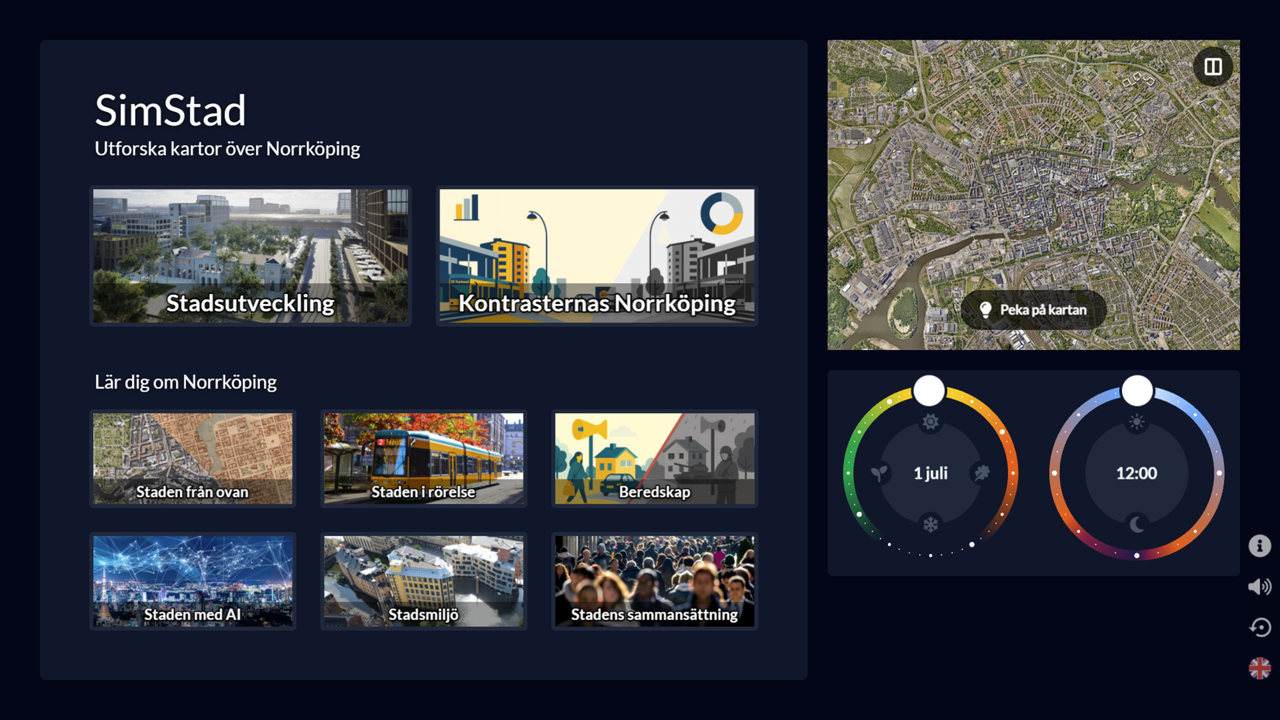
Every public page follows the same overall layout. The content on the left changes with the selected collection or scenario. The right side contains the interactive map and time controls, with utility controls in the bottom-right corner.
Interactive map. Touching a location on the map places a point light at the corresponding position on the physical 3D model.
Comparison mode. Select the pin control to keep the current dataset, then navigate to another scenario. The interface displays the pinned dataset and the newly selected dataset together for comparison.
Time controls. Two wheel controls set the date and hour of the day. These values simulate the corresponding sun position and lighting on the 3D model.
Utility controls. The information button opens information about the installation. Reset returns the application to attraction mode, mute controls audio from Pixilab Blocks, and language switches the interface between Swedish and English.
Advanced mode
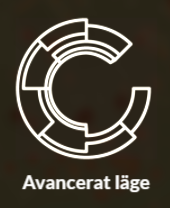
Advanced mode provides maintenance and presentation tools that are hidden from visitors. Click the information button and tap the C-logo three times. The logo spins to confirm that advanced mode is active, and three navigation buttons become available.
Exhibition
The green home button returns to the normal public exhibition. Advanced mode remains available until the application is reset.
Layers
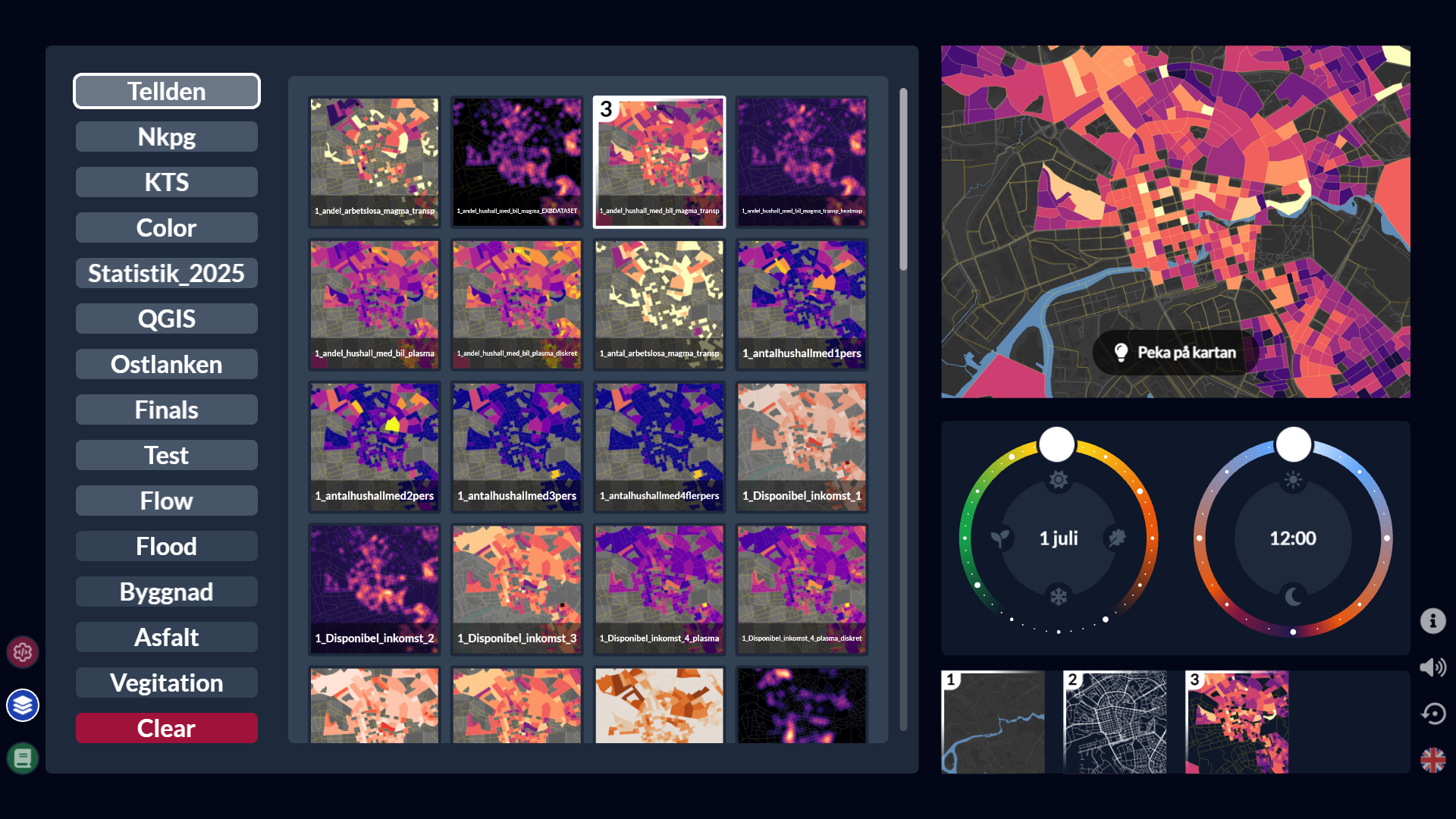
The blue layers button opens all raster files available to the selected City Exhibit, organized by their Omni Tags. This includes datasets that are not part of the public Collections and Scenarios.
On this page, the normal time controls are extended with layer controls. The active layers are shown as an ordered stack, similar to layers in an image editor. Operators can add or remove datasets and change their rendering order on the 3D model.
Debug controls
The red debug button opens the technical controls. These include connection status and commands for reloading textures, restarting or resetting the system, testing live traffic data, and enabling debug views. Because these actions affect the running installation, this page should only be used by maintainers.
Updating exhibition content
Collections, Scenarios, Layers, Legends, translations, and Raster metadata are maintained through Omni, rather than in the Interface application. After adding or replacing Raster files, allow the media folder to finish synchronizing before testing the content on the Interface computer.
Use advanced mode to verify new rasters and layer combinations without adding them to the public visitor flow. If updated media does not appear, first confirm the synchronization status and MEDIA_PATH, then use the debug controls to reload textures.