Blocks
Contributors

Funding


PIXILAB Blocks
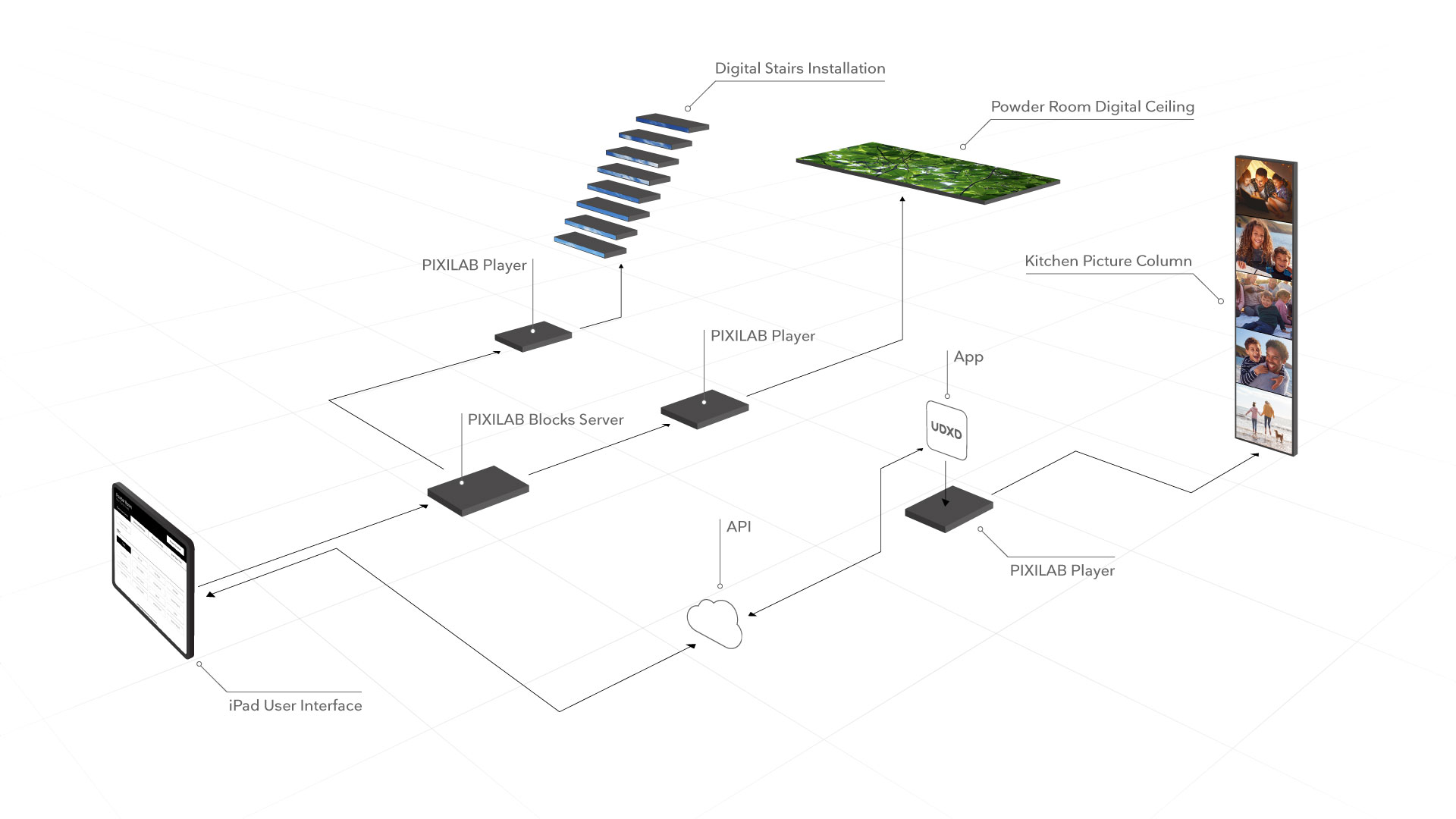
PIXILAB Blocks is a local-server platform for managing media, interactive content, and connected audiovisual equipment. It is used in museums across Sweden and in several exhibitions and public spaces at Visualization Center C.
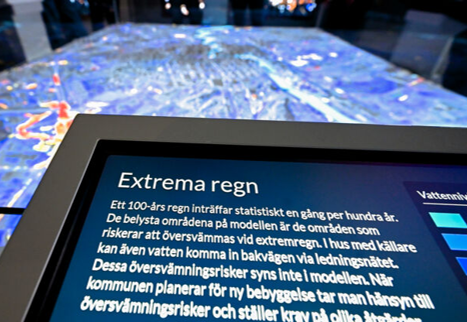
SimStad uses Blocks for supplementary content around the physical city model. Three small screens display information and legends for the selected dataset, while four vertical wall displays show synchronized background video. Blocks can support other display layouts; these numbers describe the installation in Norrköping.
 PIXILAB Blocks
Omni and Legends
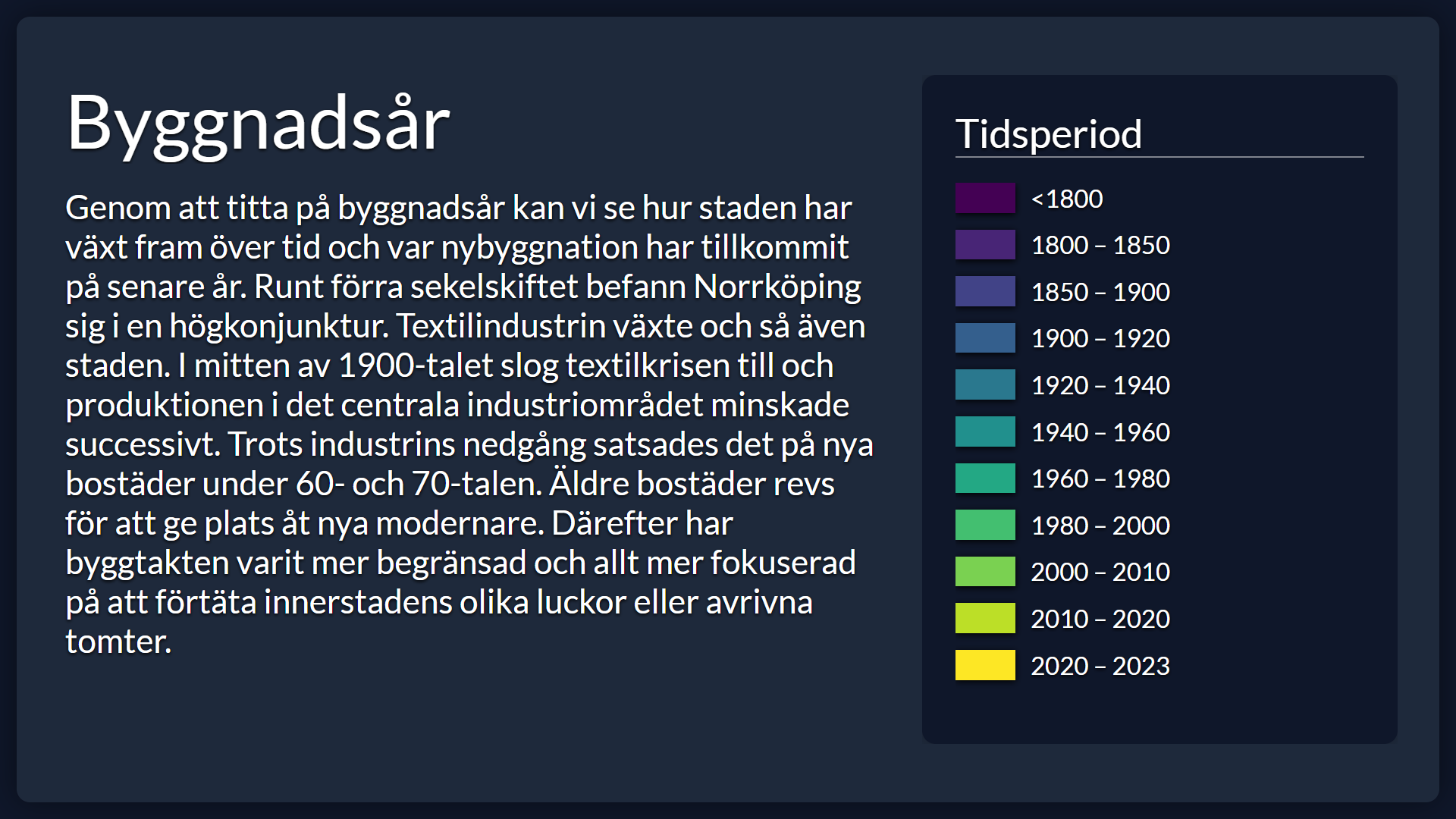
Once Omni has been installer and a few Scenarios and Legends have been created, Omni will generate a legend page for every Scenario.
The rendered page shows the Scenario description on the left. On the right, it displays the Scenario's attached Legend and its entries. If no Legend is attached, Omni instead attempts to display the Scenario's legend_image.
Single scenario
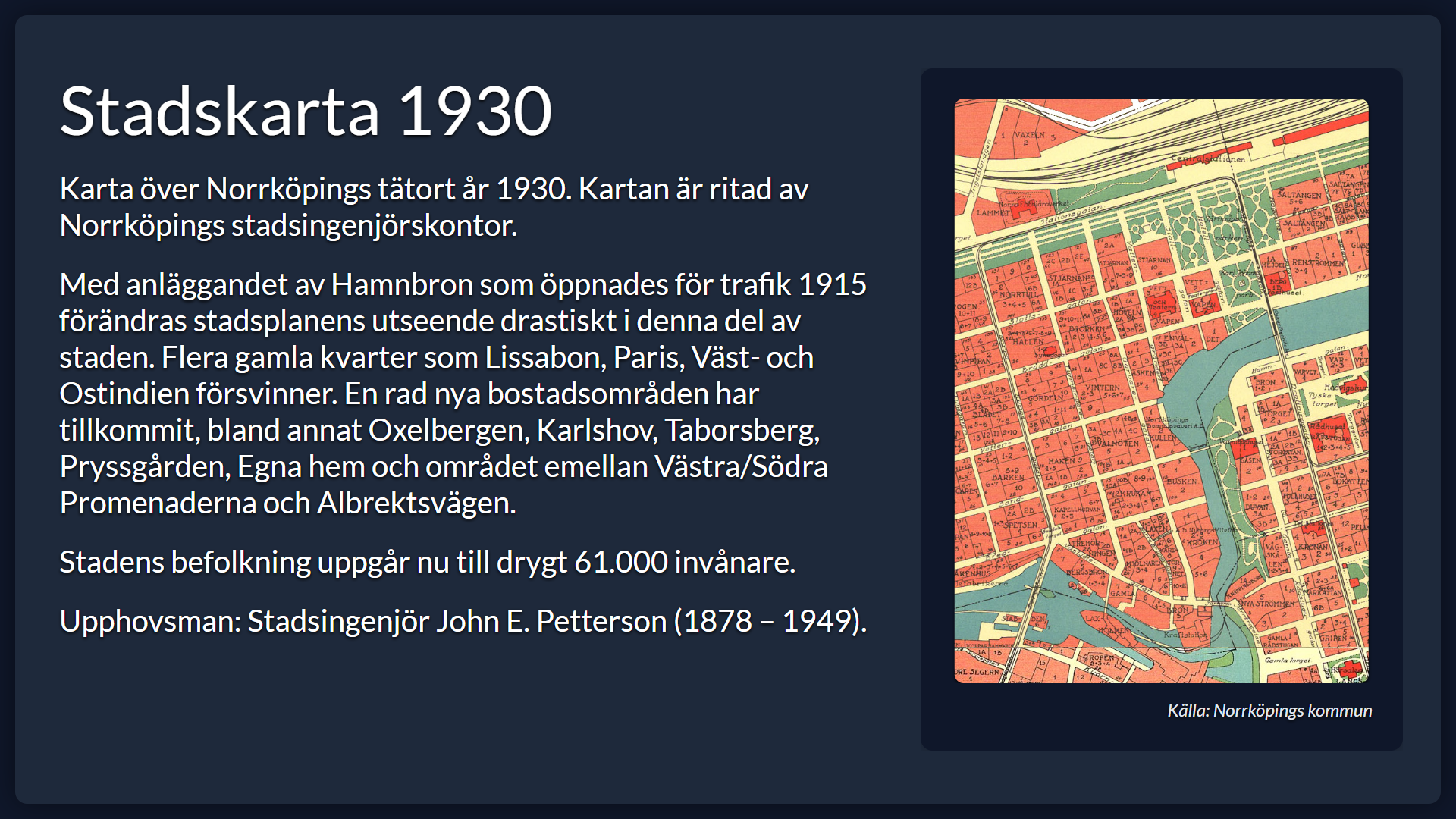
Open a Scenario by its key: <OMNI_URL>/legend/<SCENARIO_KEY>/
Swedish is used by default. Set the language query parameter to en for English or sv for Swedish: <OMNI_URL>/legend/<SCENARIO_KEY>/?language=en
Comparison mode
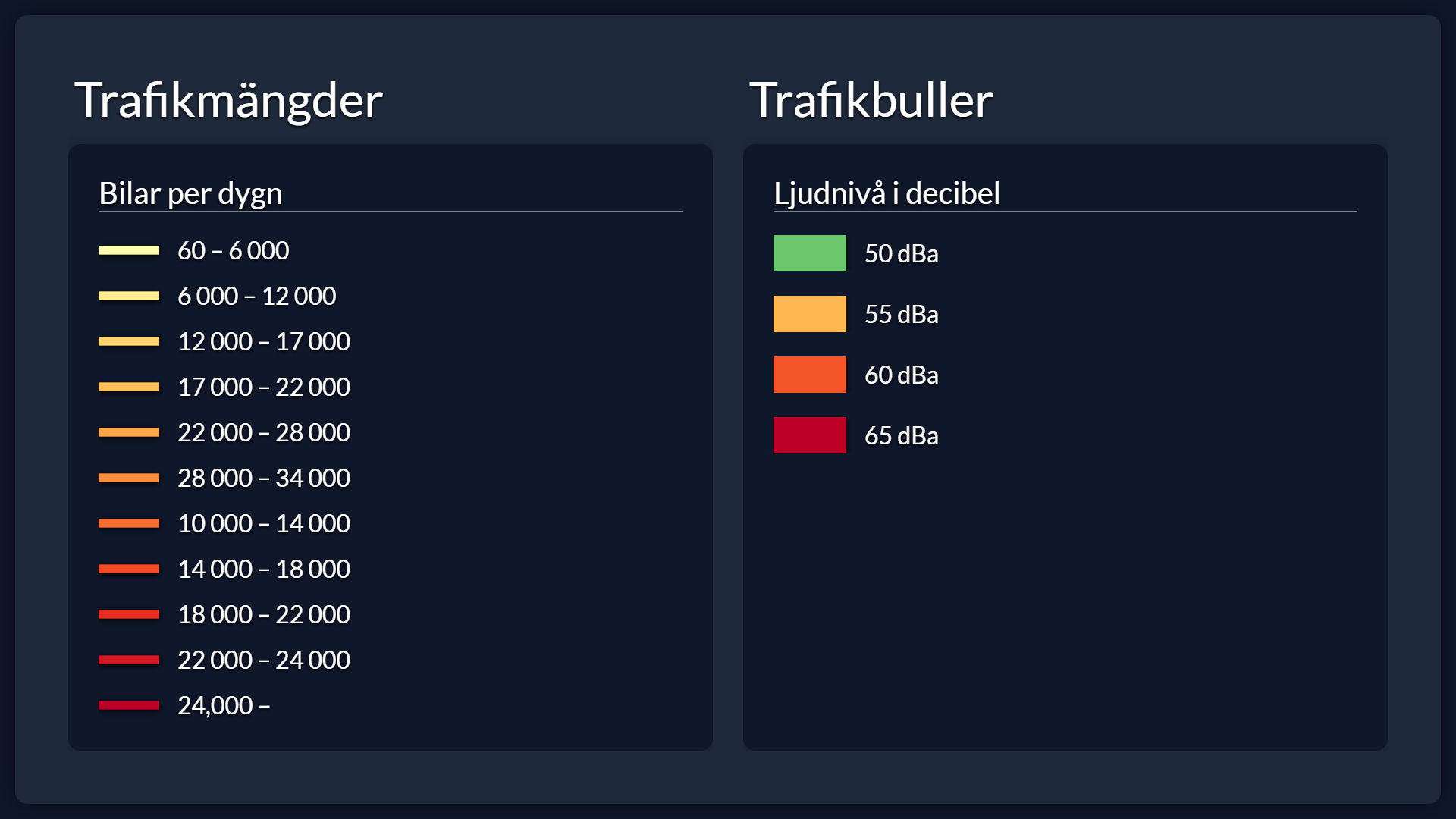
When a visitor enables comparison mode in the Interface, the legend page receives two Scenario keys: <OMNI_URL>/legend/<SCENARIO_1>/<SCENARIO_2>/?direction=tb
The direction parameter controls the orientation of the two legends. Supported values are tb (top to bottom), bt, lr, and rl. The Interface chooses the direction for each physical screen so visitors on the left, front, and right of the city model see correctly oriented content.
See Scenarios and Legends in Omni for instructions on creating Legend entries and images.
Connecting the Interface to Blocks
Whenever the selected dataset changes, the Interface sends an HTTP POST request to Blocks. These requests update the legend URLs on the small displays, start wall-display content, or change the audio state.
Configure the base endpoint in the Interface's config.json:
{
  "BLOCKS_URL": "<YOUR_BLOCKS_URL>/rest/script/invoke/WebTask"
}
The Interface uses two WebTask resources:
| Resource | JSON request body | Purpose |
|---|---|---|
/start | { "task": "TASK_NAME" } | Starts a Blocks Task, for example to change wall video or audio. |
/set | { "realmVar": "REALM_VARIABLE_NAME", "value": "NEW_VALUE" } | Sets the Realm Variable containing a legend URL. |
The resulting endpoints are therefore BLOCKS_URL/start and BLOCKS_URL/set. Read more about WebTask in PIXILAB's documentation.
Prerequisite
Blocks does not provide the external Realm Variable update endpoint by default. PIXILAB has provided us with an upgraded WebTask script that is used to update Realm variables externally.
Download the SimStad WebTask script and ask the Blocks server administrator to install it. Restrict access to the endpoint to the exhibition network because it can alter live display state.
Configure legend displays
Register displays and variables
- Register each legend display in Blocks and place them in one Spot Group. The Norrköping group is named
VISUAL-CITY-TABLEand contains three displays. - Give each display a unique ID and assign one Fixed Tag:
left,forward, orright. Follow the PIXILAB documentation for display registration, roles, and Fixed Tags; the Norrköping Spot Group uses the inherited Creator role. - Open the Task page and create a group for the SimStad Realm Variables if needed.
- Add three string Realm Variables:
SimStad_URL_Left,SimStad_URL_Forward, andSimStad_URL_Right. - For initial testing, set each variable to a valid legend page such as
<OMNI_URL>/legend/default/.
The Interface updates these variables while the exhibition runs.
Create the legend Block
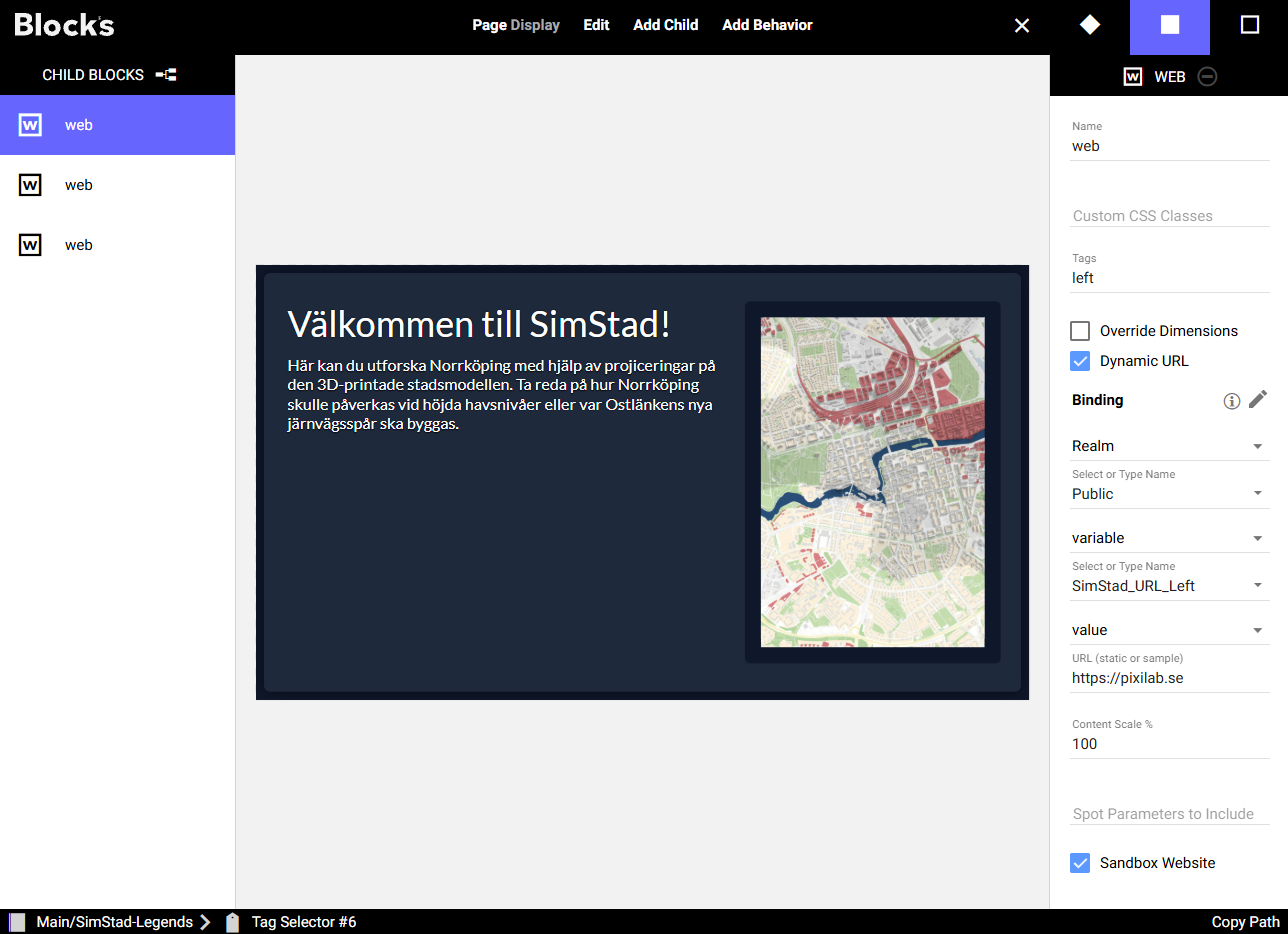
- Open the Display page and create a Block > Book named
SimStadLegends. - Inside the Book, add a Tag Selector.
- Inside the Tag Selector, add one Web child for each legend screen.
- Tag the Web children
left,forward, andrightto match the displays' Fixed Tags. - Enable Dynamic URL on every Web child and set its Binding to Realm.
- Bind each child to its matching Realm Variable, for example
lefttoSimStad_URL_Left. - Return to the Blocks home page and assign
SimStadLegendsto the legend-display Spot Group.
Every display receives the same Book. The Tag Selector selects the Web child matching that display's Fixed Tag, and each child loads the URL held by its Realm Variable.
Configure wall-display video
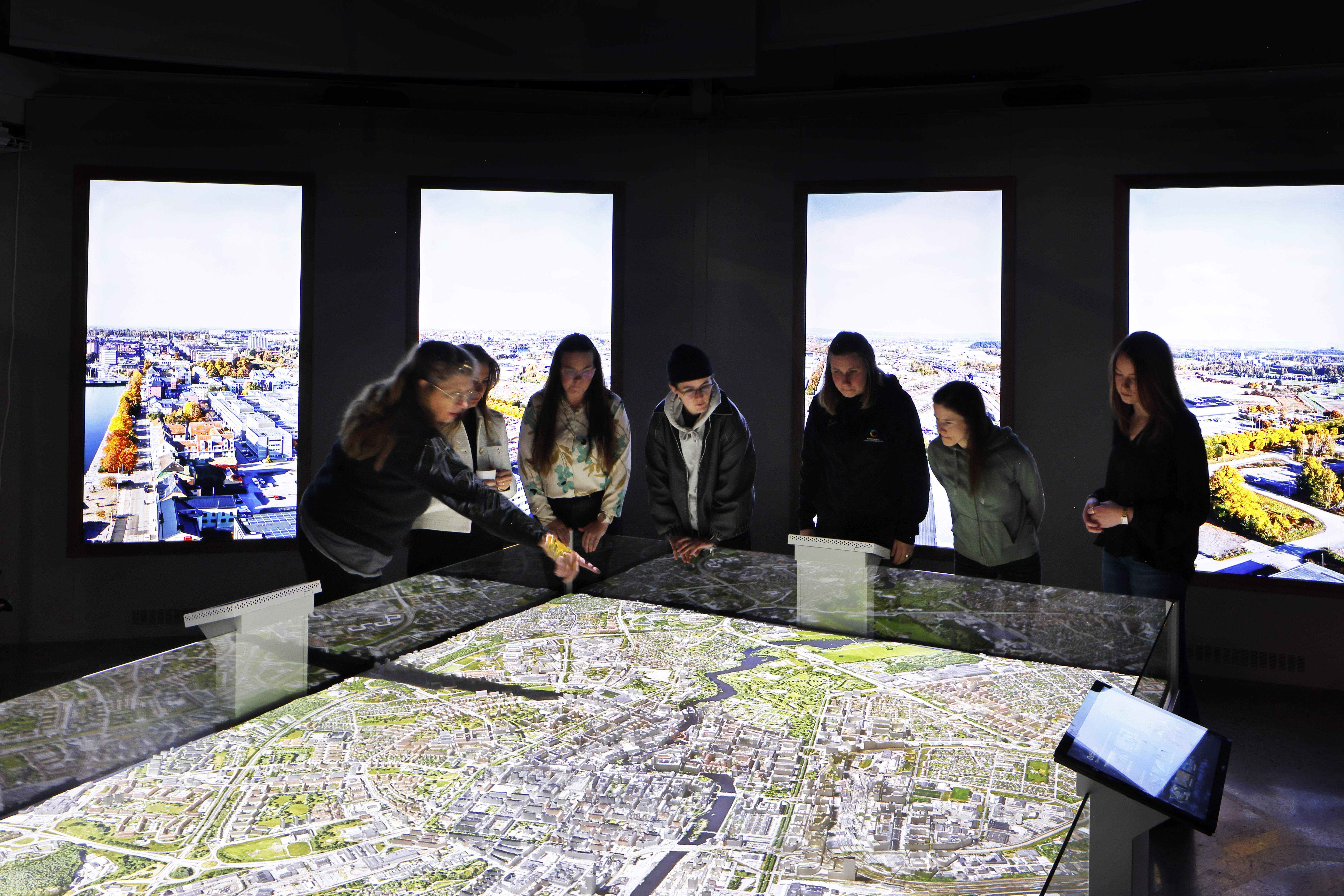
The Norrköping installation uses four vertical displays, each playing one section of a synchronized composition.
Create a synchronized video Block
- Create a Spot Group for the wall displays.
- Register each display and give it a Fixed Tag such as
window1,window2, and so on. - On the Display page, select Block > Add Composition and give the composition a descriptive name, such as
SimStad_Idle. - Inside the composition, add a Synchronizer, then a Tag Selector inside the Synchronizer.
- Add each display's MP4 segment as a Media File inside the Tag Selector. Enable looping where appropriate.
- Tag every Media File with its target display's Fixed Tag, for example
window3for the third display. - Assign the completed composition to the wall-display Spot Group and verify that all segments play on the correct displays and remain synchronized.
Create a separate composition for each group of videos the Interface needs to select.
Create a video Task
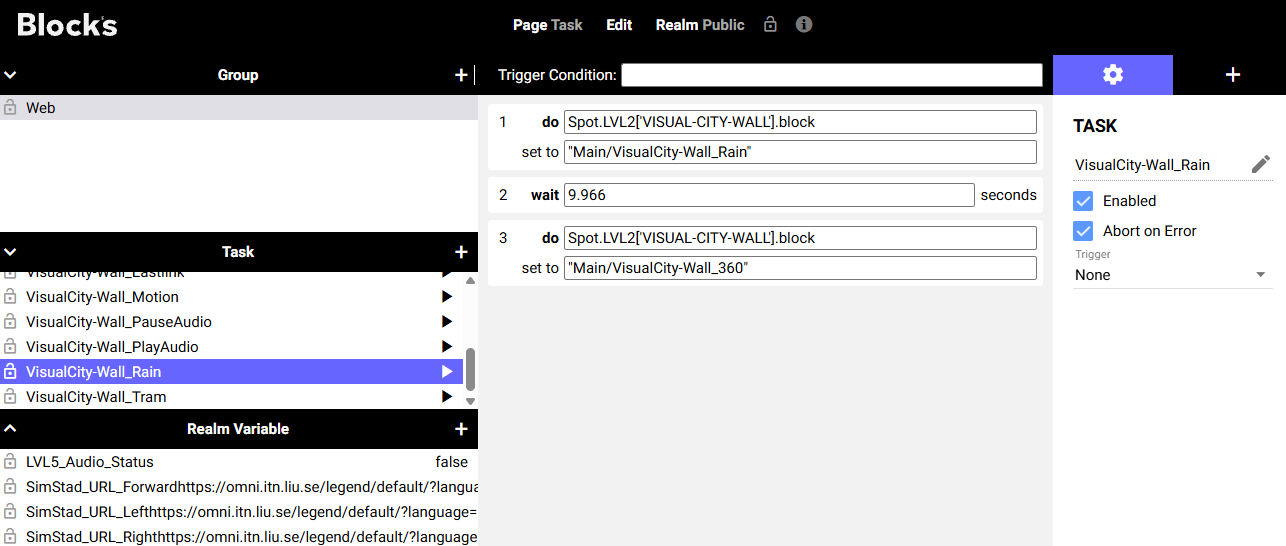
- Open the Task page and add a Task whose name matches the command expected by the Interface, for example
SimStad_Idle. - Add a do statement.
- Set its target to Spot, select the wall-display group, and select its
blockproperty. - Set the value to the full name of the composition, for example
MyGroup/SimStad_Idle. - Run the Task with the play button and confirm that the Spot Group switches to the expected composition.
For a short event such as a thunderstorm, create a separate composition and Task. After assigning the event composition, add a wait statement for its duration, followed by another do statement that restores the idle composition.
Configure audio controls
The Interface's mute control starts Blocks Tasks that set the wall displays' volume.
- On the Task page, create a playback Task such as
SimStad_PlayAudioand a corresponding mute Task. - Add one do statement for each wall display.
- For each statement, select Spot, the wall Spot Group, the target display, and its
volumeproperty. - Set the volume to
1in the playback Task and0in the mute Task. - Run both Tasks from Blocks and verify every display before testing the Interface button.
The audio Task IDs are currently configured in the Interface source rather than in config.json. Update the Task IDs used by setBlocksAudio in BlocksManager.ts so they exactly match the Tasks created in Blocks, then rebuild the Interface.
Alternatives to Blocks
Blocks is optional. A straightforward replacement is a small web server that implements the /start and /set POST endpoints described above. Set BLOCKS_URL in the Interface's config.json to this server, parse the incoming task and Realm Variable commands, and use them to select the content shown on each connected display. Legend screens can render the supplied Omni legend URL in an iframe.