Plug-ins
Contributors


Funding


Plug-ins
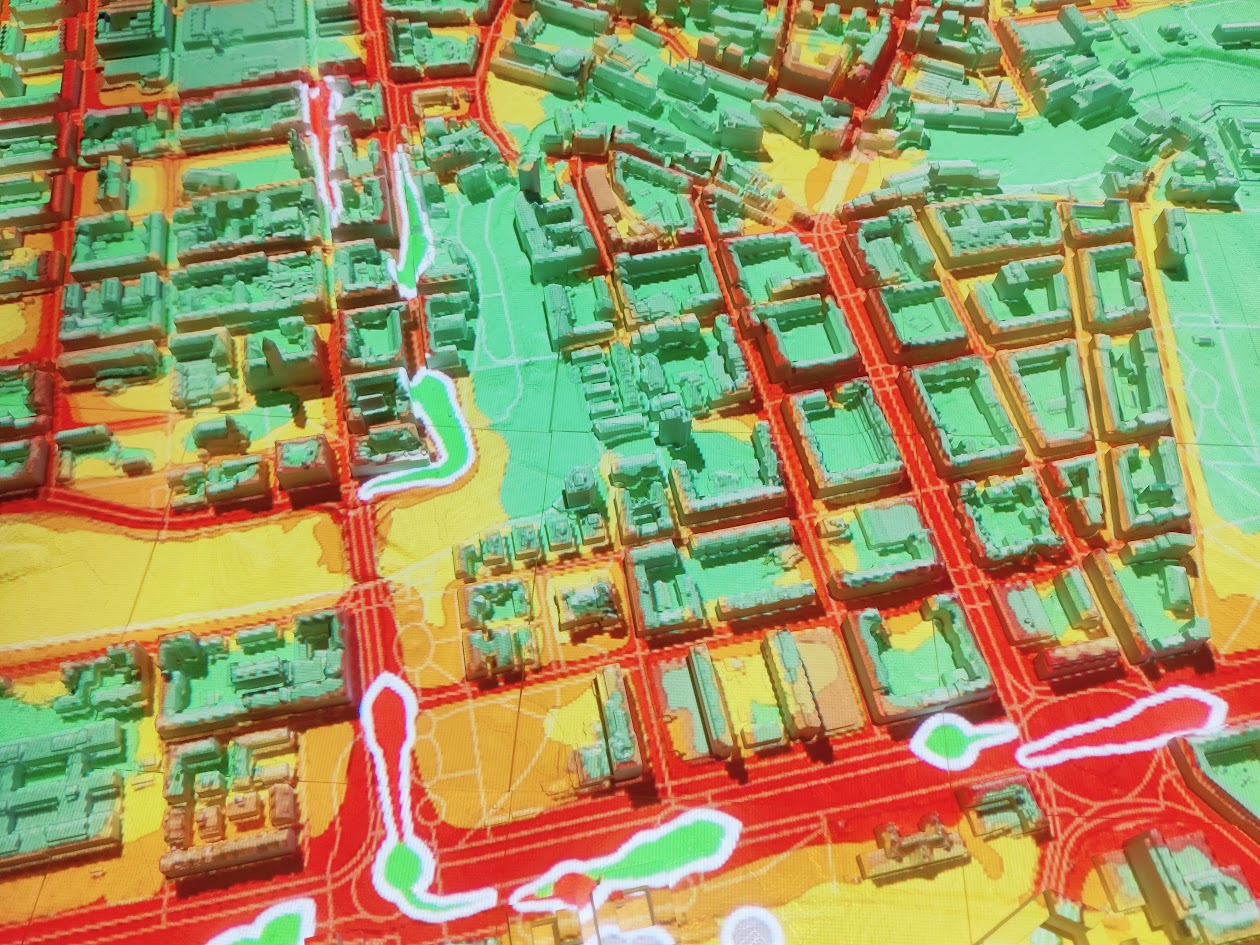
SimStad can display live or dynamically generated visualizations as NDI video layers. This provides an open extension point: a plug-in may collect data, render it with any suitable technology, and publish the result as an NDI stream. Unreal Engine then composites that stream onto the city model like any other Scenario Layer.
A plug-in does not need to be part of Omni or the Unreal project. It only needs to:
- Produce a visual output matching the map projection and aspect ratio.
- Publish that output as a named NDI stream available on the exhibition network.
- Use the same stream name in an NDI Layer in Omni.
The computer receiving the stream requires the NDI runtime, and the Unreal project requires its NDI integration. See the Unreal guide for the project dependency and the Layer protocol for the message format.
TrafiklabNDI
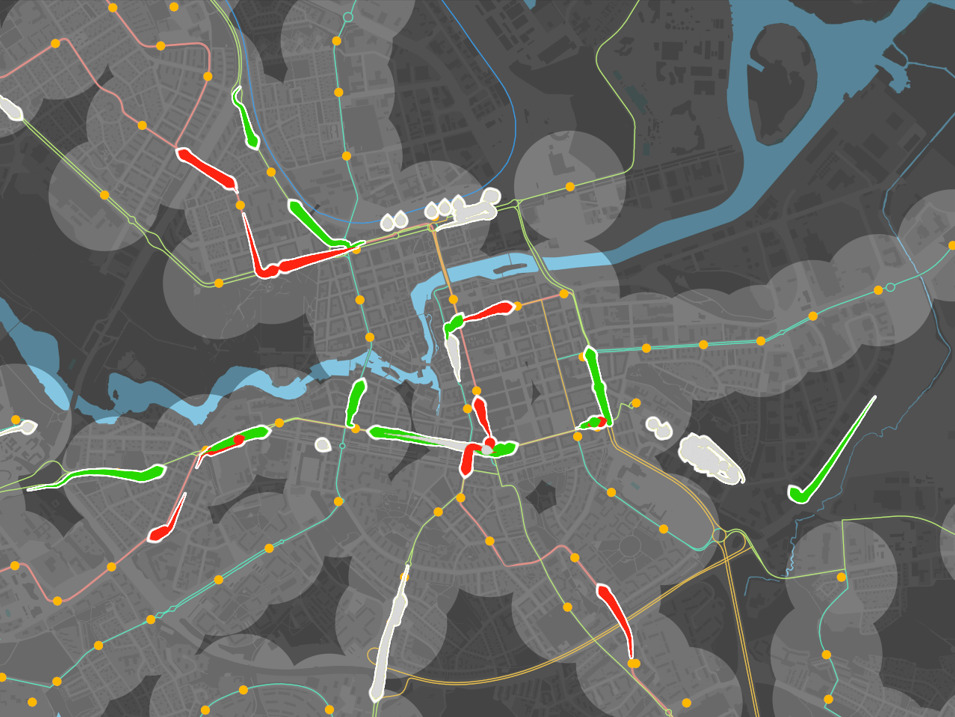
TrafiklabNDI is the current reference plug-in. It visualizes real-time buses, trams, and trains from Trafiklab's regional public transport data and projects them onto SimStad's physical city model.
The application consists of a small Python server and a web visualization. The server reads GTFS and GTFS-Realtime data, sends vehicle updates to the web page, and a headless browser captures that page and publishes it as an NDI video stream. This keeps data retrieval and rendering outside Unreal while still allowing the result to be used as a normal live Layer.
 Source code and setup
Requirements
- An NDI 6 SDK or runtime on the computer running the streamer.
- Trafiklab API access for both live GTFS-Realtime positions and static GTFS route data. The keys are not included in the repository. Register the required API products with Trafiklab and review their current subscription, pricing, quota, and license terms.
- Projection bounds configured for the city model.
- Current
routes.txtandtrips.txtfiles for the selected regional operator.
The source can be run with Python or packaged as Windows executables for an exhibition deployment. Build instructions, environment variables, command-line options, data URLs, and troubleshooting are maintained in the repository README.
Connect the stream to SimStad
- Install the NDI runtime and build or download the TrafiklabNDI applications as described in the repository.
- Configure the Trafiklab API keys, regional operator, projection bounds, resolution, and operating hours.
- Start the server and NDI streamer. The Norrköping installation uses the stream name
TrafficOverlayNDI. - In Omni Admin, open the relevant Scenario and add a Layer with type NDI.
- Set Ndi stream to the exact published stream name, for example
TrafficOverlayNDI. - Leave Ndi machine blank when the stream runs on the Unreal computer. Set it to the source computer name when the stream is published by another machine on the network.
- Save the Scenario and verify that Unreal can discover and display the stream.
NDI discovery depends on the exhibition network. The source and Unreal computers must be able to discover each other, and local firewalls must allow NDI traffic. For a permanent installation, configure the server and streamer to start automatically and keep their operating hours aligned.
TrafiklabNDI defaults to Norrköping and Östgötatrafiken, but the same approach can be adapted to other Trafiklab regional feeds by changing the operator, static schedule data, and projection bounds.