
Synchronization
Contributors

Funding

Synchronization
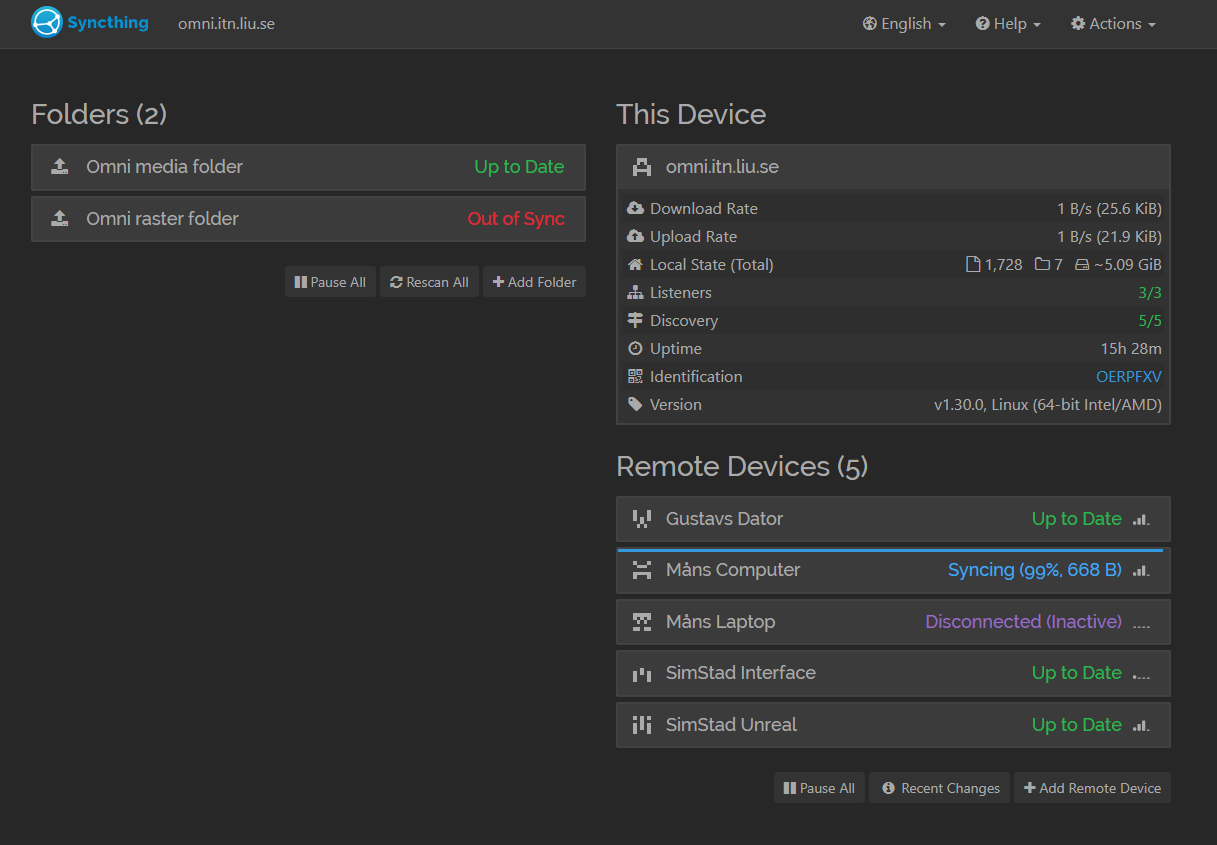
SimStad stores content metadata in Omni, but the Interface and Unreal Engine application read the associated media from local files. A reliable synchronization setup is therefore essential: the applications can exchange valid keys and commands while still showing missing or outdated content if their local files do not match Omni.
Omni stores uploaded images, videos, thumbnails, and other generated files below the Django MEDIA_ROOT. This is normally the media folder in the Omni installation. MEDIA_URL determines the URL used when those files are served over HTTP; it does not change where they are stored on disk. See Omni's media folder structure for the purpose of each subfolder.
The two consuming applications need different views of this media:
| Source on the Omni computer | Destination | Configuration |
|---|---|---|
The complete media folder | Any local folder on the Interface computer | Set MEDIA_PATH in the Interface's config.json to this destination. |
media/rasters | DigitalTwin/Datasets on the Unreal computer | The Datasets folder must be in the expected location beside the packaged application, or in the corresponding development-project location. |
If Unreal consumes additional media types from another Omni subfolder, make those files available under DigitalTwin/Datasets as well. The important requirement is that every filename referenced by an Omni Raster can be resolved by the receiving application.
Install Syncthing
Install Syncthing on the Omni, Interface, and Unreal computers. Start Syncthing on each computer and open http://localhost:8384 to access its local administration page.
The administration page is local by default. Do not expose it directly to the public internet. Follow your organization's network and authentication requirements if remote administration is needed.
Before configuring synchronization, back up any existing production media. Syncthing mirrors changes, including deletions, and is not a backup system.
Connect the computers
Each Syncthing installation has a Device ID under Actions > Show ID.
- Copy the Interface computer's Device ID.
- On the Omni computer, select Add Remote Device, enter that ID, and give the device a recognizable name.
- Accept the connection prompt on the Interface computer.
- Repeat these steps for the Unreal computer.
Adding the Omni Device ID from either receiving computer works equally well. Both devices must accept each other before folders can be shared.
Share media with the Interface
Configure the Omni computer as the source of truth:
- On the Omni computer, select Add Folder.
- Give the folder a clear label and ID, such as
SimStad Mediaandsimstad-media. - Set Folder Path to Omni's complete
mediafolder, matchingMEDIA_ROOT. - Under Sharing, select the Interface computer.
- Under Advanced, set Folder Type to Send Only.
- Save the folder.
The Interface computer will prompt you to add the shared folder:
- Accept the share and choose any suitable local destination, such as
C:\SimStad\media. - Optionally set the destination to Receive Only so accidental local edits are reported instead of sent back to Omni.
- Wait until both devices report Up to Date.
- Set
MEDIA_PATHin the Interface'sconfig.jsonto the exact destination path. - Start the Interface and verify that Collection images, thumbnails, Rasters, and videos load.
The Interface requires the complete media folder because it uses full media as well as Omni's generated previews and other uploaded assets.
Share Rasters with Unreal Engine
Create a second Syncthing folder for Unreal's dataset directory:
- On the Omni computer, select Add Folder again.
- Use a distinct label and ID, such as
SimStad Rastersandsimstad-rasters. - Set Folder Path to Omni's
media/rastersfolder. - Share it with the Unreal computer and set the folder type to Send Only.
- On the Unreal computer, accept the share and set its destination to the application's
DigitalTwin/Datasetsfolder. - Optionally set the Unreal destination to Receive Only.
- Wait until both devices report Up to Date, then start or recache the Unreal application.
Do not point the Unreal share at the parent application folder. Its destination should be the Datasets directory itself so the Raster files appear at the paths expected by Unreal.
Running applications on the same computer
Syncthing is intended primarily for synchronization between devices. When Omni and the Interface run on the same computer, Syncthing is unnecessary: set MEDIA_PATH directly to Omni's local media folder.
When Omni and Unreal run on the same Windows computer, create a directory junction so DigitalTwin/Datasets refers directly to media/rasters without copying files. The destination path must not already exist; move or back up an existing Datasets folder first.
New-Item -ItemType Junction -Path "C:\SimStad\DigitalTwin\Datasets" -Target "C:\SimStad-Omni\media\rasters"Replace both paths with the actual packaged Unreal and Omni locations. Changes under Omni's Raster folder then appear immediately through the Datasets path. A junction is suitable for local NTFS folders and generally avoids the elevated permissions sometimes required by symbolic links.
Verify synchronization
After setup, test the complete content path:
- Upload a small Raster in Omni and wait for processing to finish.
- Confirm that Syncthing reports Up to Date on all involved computers.
- Verify that the Raster exists below the Interface's
MEDIA_PATHand Unreal'sDigitalTwin/Datasetsfolder. - Open the Raster in the Interface and display it on the 3D model.
- Replace the test Raster in Omni and confirm that the updated file reaches both applications.
If the Interface shows metadata but no image, check MEDIA_PATH and the whole-media share. If the Interface looks correct but the projection is missing or stale, check the Raster share, filename, and Unreal cache. Files removed from disk may remain in Unreal's memory until the application is restarted.
Alternative solutions
Syncthing is recommended but not required. Any solution is suitable if it reliably mirrors Omni's media into the exact local paths expected by the Interface and Unreal Engine.
Alternatives include rsync, managed network storage, another folder-synchronization service, scheduled copy jobs, or deployment tooling. When all applications run on one computer, direct paths and directory junctions are simpler than synchronization. A network share may also work, but local copies are generally more resilient if the network becomes unavailable during an exhibition.
Whichever method you choose, keep Omni as the authoritative source, preserve filenames and subfolders, propagate updates and deletions deliberately, and monitor synchronization failures as part of normal exhibition maintenance.