Scenarios
Contributors

Funding


Scenarios
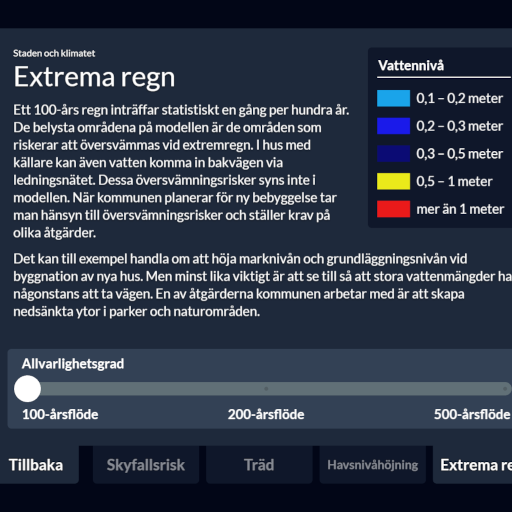
A Scenario is one visitor-facing story. It combines explanatory text, a Legend, and one or more map Layers displayed on the 3D model. Within a Collection, Scenarios appear as tabs along the bottom of the Interface.
Create the required Rasters and optional Legend before building a Scenario.
Scenario fields
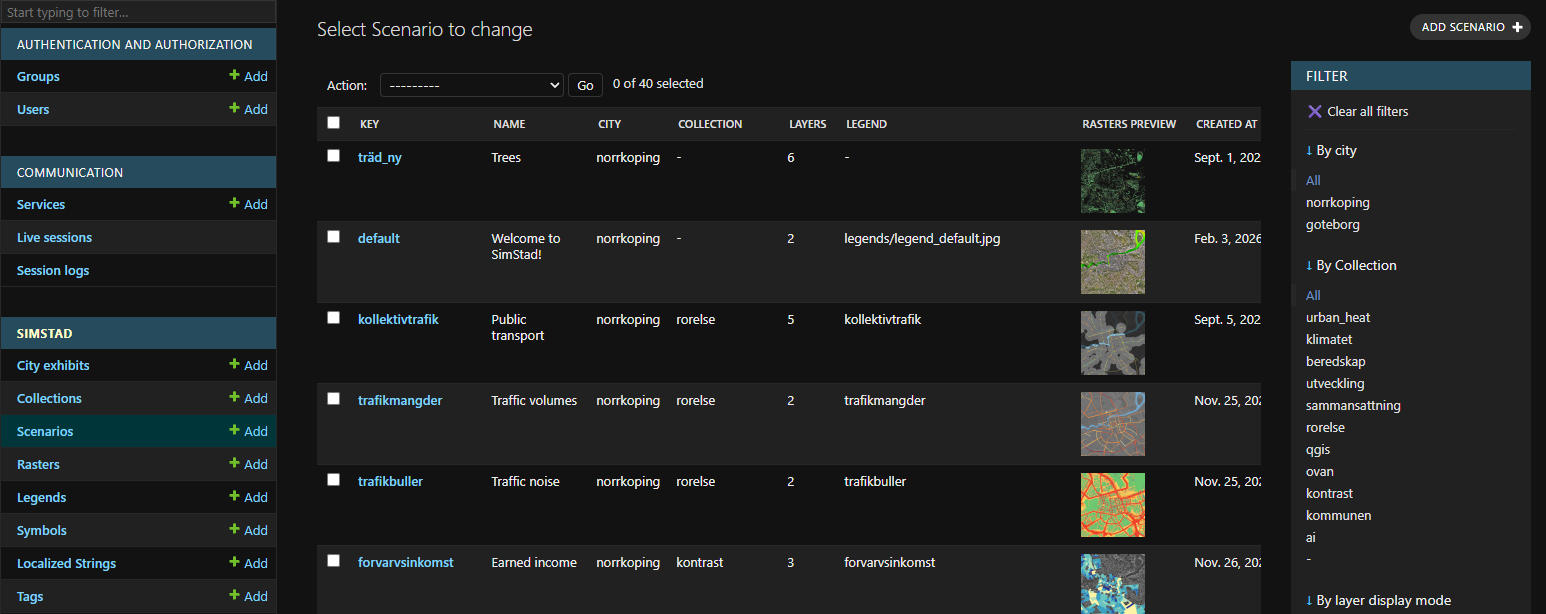
After creating a new Scenario under Simstad > Scenarios in Omni Admin, add its details here.
| Field | Description |
|---|---|
| Key | Unique, stable identifier used by the API and Legend-page URL. |
| Name (English/Swedish) | Full visitor-facing Scenario title. |
| Description (English/Swedish) | Main explanatory text shown in the Interface and on Omni's Legend page. |
| City | City Exhibit to which this Scenario belongs. Use Rasters from the same City Exhibit. |
| Legend | Optional reusable Legend shown beside the description. |
| Legend image | Optional image used instead of a structured Legend. Provide either a Legend or a Legend image, not both. |
| Legend image source (English/Swedish) | Attribution or source text for the Legend image. |
| Short name (English/Swedish) | Optional compact title used on Scenario tabs when the full name is too long. |
| Layer display mode | Stacked displays Layers together; Sequential lets visitors move through Layers with a slider. |
| Sequence title (English/Swedish) | Heading above the slider. Required for a sequential Scenario. |
| Sequence labels | Ordered bilingual labels distributed along the sequential slider. |
| Layers | Ordered rendering instructions that select Rasters and control how they appear. |
The short name, display mode, and sequence title are in the collapsed Advanced section. Sequence labels and Layers are edited below the main Scenario fields.
Display modes
Stacked
Stacked mode displays every Layer at the same time and in its configured order. It is useful for a background map with transparent overlays, such as buildings, flooding, and labels. Reusing separate Rasters makes components available to other Scenarios; combining them into one image can be simpler when they will never be reused or controlled independently.
Sequential
Sequential mode adds a slider and displays one non-locked Layer at a time. Use it for ordered states such as years, forecast levels, or alternatives.
Add a bilingual Sequence title and one Sequence label for each selectable step. Mark a Layer as Locked order when it must remain visible while the visitor moves through the sequence, for example a base map beneath every changing dataset.
Layer types
Every Layer has a type and a position in the rendering order. The selected type determines which additional fields are available.
| Type | Required configuration | Use |
|---|---|---|
| Image | An image Raster | Displays a normal static map layer. This is the default and most common type. |
| Movie | A video Raster; optional movie speed | Plays an MP4 Raster on the model. |
| Color | A color | Adds a solid background or transparent color overlay without a Raster. |
| Flow | An image Raster, flow-texture Raster, scale, and speed | Applies an animated directional texture. This feature is experimental and should be tested in the target Unreal build before authoring production content. |
| NDI | NDI stream name; optional machine name | Displays a live NDI source. See the Plug-ins guide for requirements, setup, and the TrafiklabNDI example. |
Image and Flow Layers accept only image Rasters. Movie Layers accept only video Rasters. Color and NDI Layers do not select a Raster.
Layer appearance
The collapsed Advanced section on each Layer contains:
| Field | Description |
|---|---|
| Opacity | Transparency from 0 (invisible) to 1 (fully visible). |
| Emission | Self-illumination strength. Increase it when a Layer must remain bright independently of simulated sun lighting. |
| Crop type | No crop, rectangular slice crop, or circle crop. |
| Locked order | Keeps the Layer visible while a sequential Scenario changes between other Layers. |
Slice and circle crop values use normalized image coordinates from 0 to 1. A slice defines minimum and maximum horizontal and vertical bounds. A circle defines its center and radius. Test cropping on the physical model because a mathematically correct crop may still need adjustment for the projection and model geometry.
After creating the Scenario, preview it together with its Legend by checking out how to preview legends.
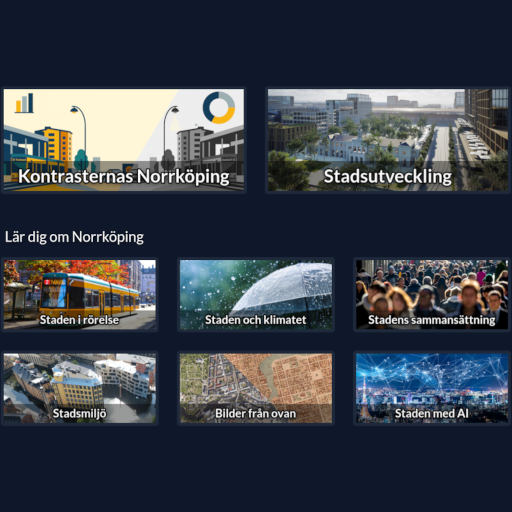
Once you have created a new Scenario, you can add it to a Collection.
 Collections