Rasters
Contributors

Funding

Rasters
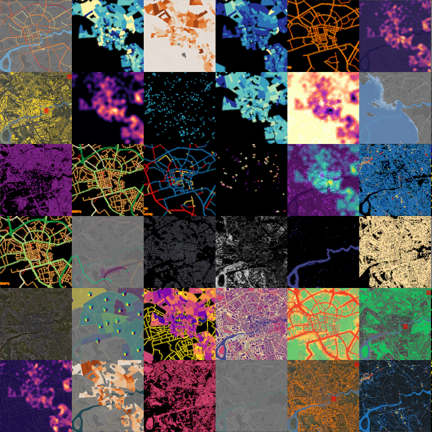
Rasters are the media assets projected onto the physical 3D city model. A Raster can be a map image or a video. Images may contain transparency so several Rasters can be combined as Layers in a Scenario.
Each Raster belongs to one City Exhibit. Omni generates smaller preview files when media is uploaded; the Interface uses these minimaps and thumbnails to load menus and previews efficiently while Unreal Engine uses the full media.
Prepare media
- Use the pixel dimensions configured on the City Exhibit for full-coverage map images.
- Prefer PNG for map layers that require transparency or exact colors.
- Use MP4 for video Rasters.
- Align every map export to the same geographic extent as the 3D model. Images with matching pixel dimensions but different map bounds will still project incorrectly.
- Keep a high-quality source copy outside Omni, especially if an image has been processed specifically for projection.
Fields
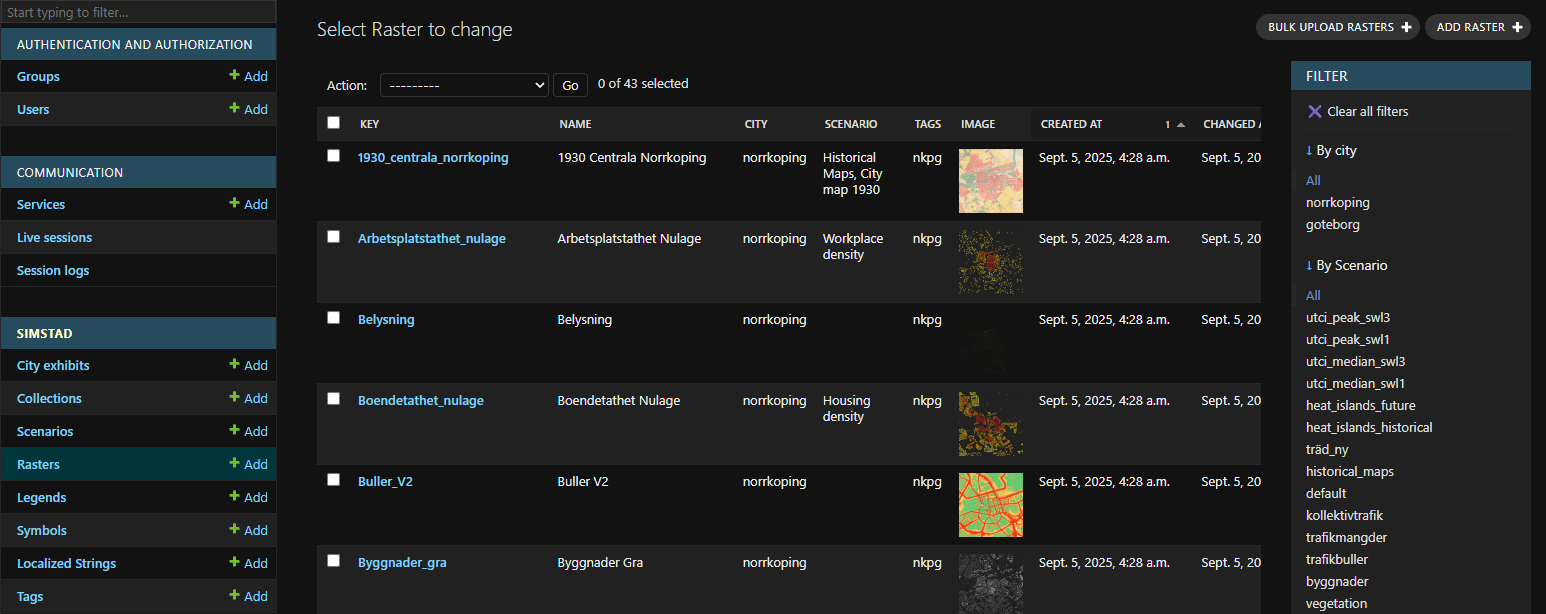
After creating a new Raster under Simstad > Rasters in Omni Admin, add its details here.
| Field | Description |
|---|---|
| Key | Unique, stable identifier used by Scenarios, the API, and settings such as IDLE_RASTER. |
| Name (English/Swedish) | Human-readable dataset name shown in the Interface. |
| City | City Exhibit whose map extent and physical model this media matches. |
| Tags | Optional Tags used to group the Raster on the advanced Layers page. |
| Notes | Internal description of the data, source, processing, or licensing. Notes help maintainers but are not the visitor-facing Scenario description. |
| Media type | Select Image or Video. |
| Image | Required when the media type is Image. Do not also provide a video. |
| Video | Required when the media type is Video. Do not also provide an image. |
Saving an image generates a minimap and square thumbnail. Saving a video generates still-image previews. These derived files are managed by Omni and should not be uploaded manually.
Bulk upload
Use Bulk upload rasters when several files belong to the same dataset and share a City, Tags, and Notes. Select a manageable batch and allow processing to finish before starting another; preview generation can make very large uploads exceed the server's request timeout.
Review the generated keys, translated names, thumbnails, and City assignment after upload. A successful upload does not verify geographic alignment, so test representative media on the physical model.
Omni is the source of truth for these files, but the Interface and Unreal Engine application read local copies. Synchronization is essential: share the complete media folder with the Interface and mirror media/rasters to Unreal's DigitalTwin/Datasets folder. After adding, replacing, or deleting media, wait for synchronization to complete before testing. See Synchronization.
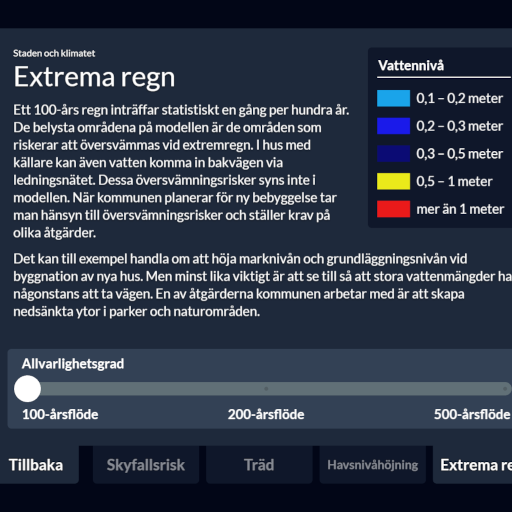
Once you have created a new Raster, you can add it as a Layer in a Scenario.
 Scenarios